Upgrading From the UHK 60 to the UHK 80
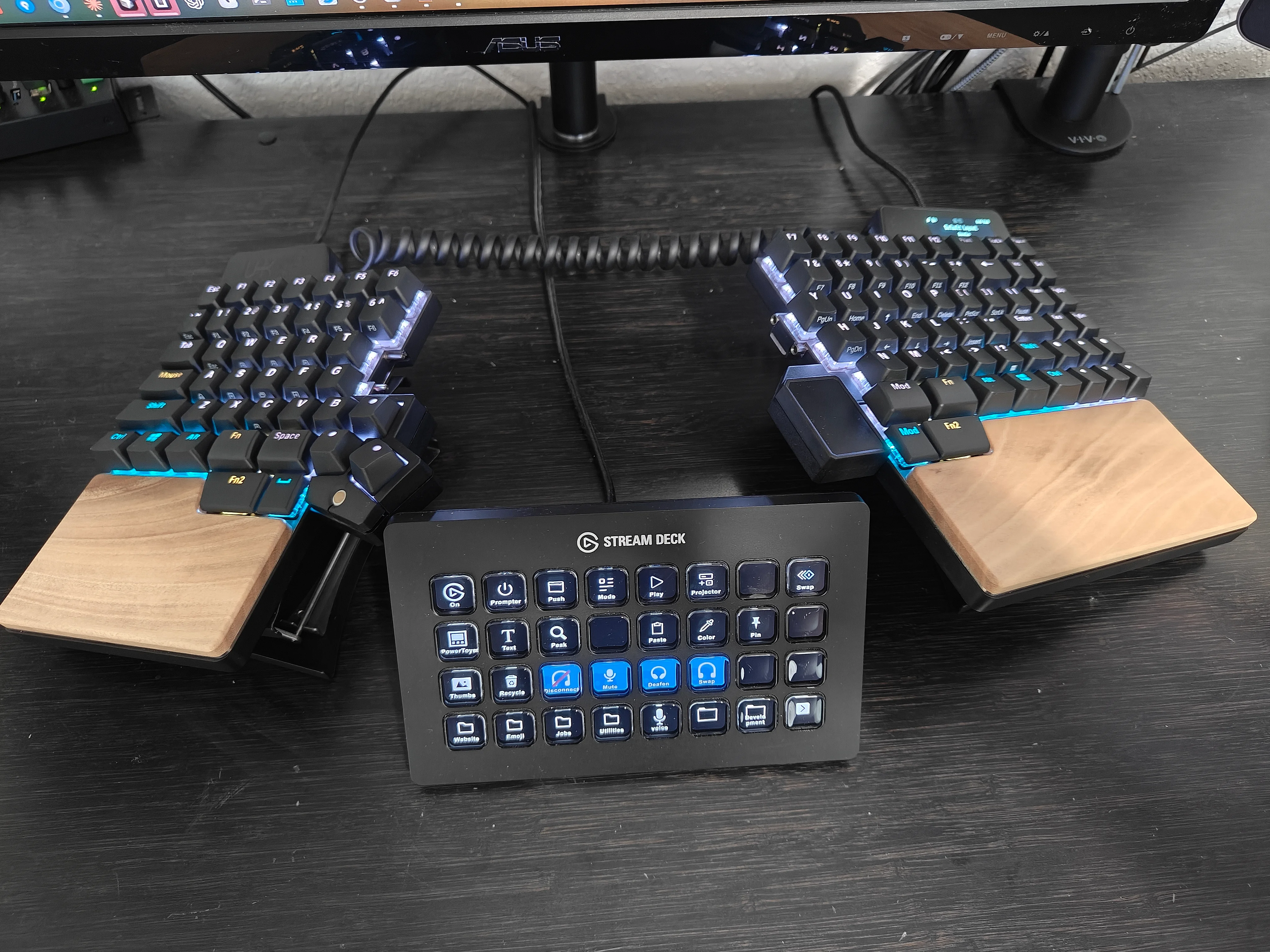
Two years ago I wrote about my experience using a split keyboard, which at the time meant the Ultimate Hacking Keyboard 60 v2. That post gets a decent amount of traffic still, so naturally a follow up had to happen with the UHK 80!
Now, because Ultimate Gadget Laboratories sent me a Ultimate Hacking Keyboard 80 review unit, I can do just that.
Full disclosure, Ultimate Gadget Laboratories sent a UHK 80 with peripherals to me for free but did not pay me for this review, and nobody reviewed the video or this post before it went up.
Whether or not you buy any keyboard, this should be the main takeaway: your thumbs are the strongest digits you have, and right now you are almost certainly using both of them for exactly one key.
Imagine if you used your thumbs for more than that?! Not to mention all of the other ergonomic benefits of using a split keyboard I touched upon in my article last time.
What’s actually different from the 60
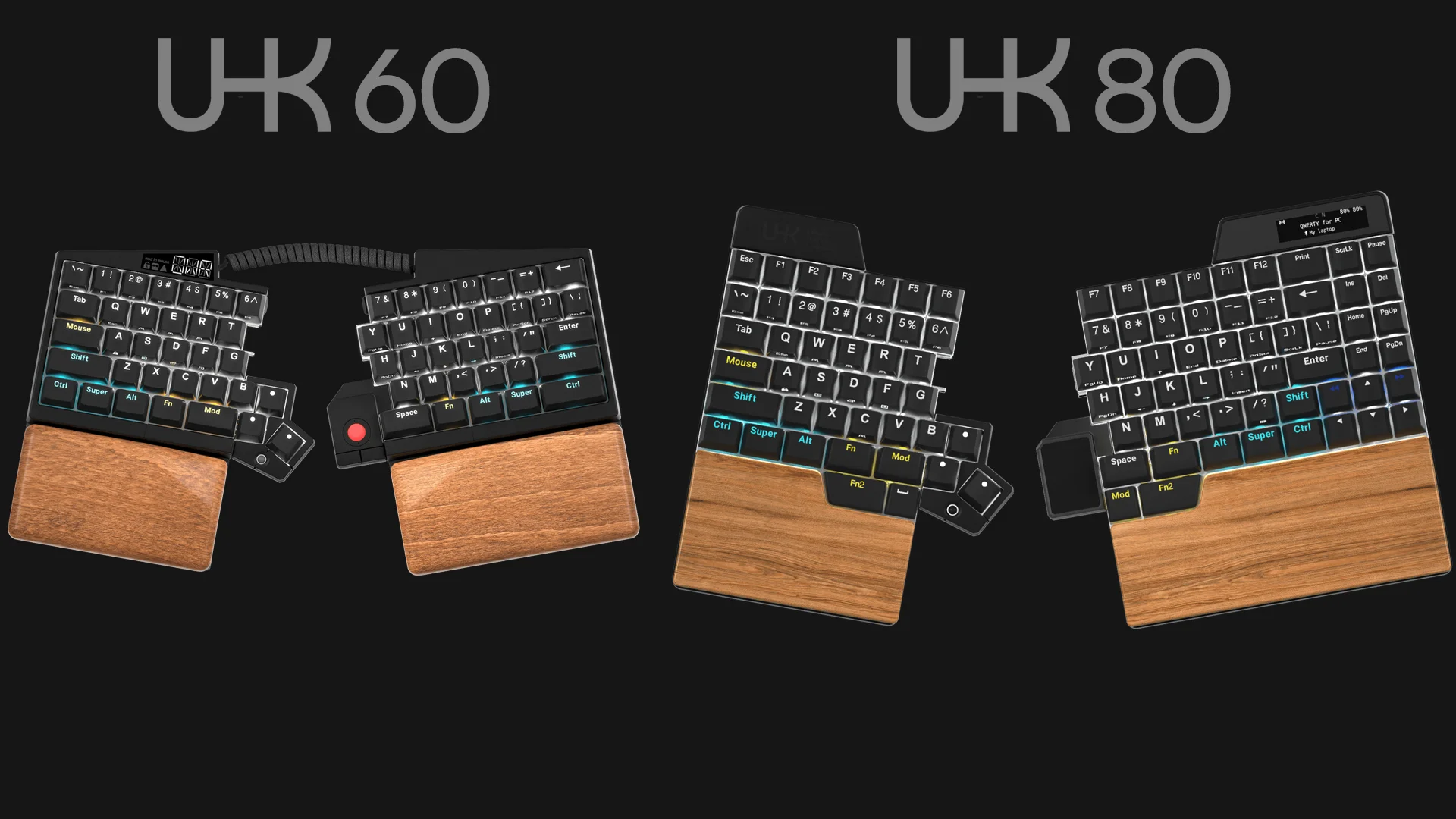
The obvious answer is keys. You get a dedicated function row (F1, F2, F3, etc.), real arrow keys, and a navigation cluster. There’s also a new OLED display and wireless connectivity options.
The upgrade I was the most excited about going in was the thumb cluster placement. On the 60 those were clicky microswitches, oddly satisfying to press but not especially practical. The 80 replaces them with two lower profile keys that sit where your thumb already rests, and they work great as modifiers. These two keys on each side completely changed how I use the board.
The wrist rests are built in now, which is quite nice. On my 60, it got wobbly over time and needed retightening, and because of how the riser mounts, I had to undo the tenting to get at them. The built in version removes that chore completely.
What it costs
All USD from UHK’s own website with the country set to US, checked September 2026. Their pricing converts from euros, so the cents drift a little.
| Item | Price |
|---|---|
| UHK 80 | ~$365 |
| Riser tenting kit | ~$85 |
| Wireless dongle | ~$28 |
| Batteries | ~$28 |
| OS keycaps | ~$9 |
| Each module | ~$61 |
The configuration in the video, with all four modules, runs a little over $750. Definitely nothing to sneeze at. However, you do not need to buy it that way. For most, I'd recommend the keyboard itself, a riser, and probably one module (the key cluster), which puts you att about $510. The key cluster makes a huge difference, the Riser is more of a nice-to-have even, and then whatever accessories appeal to you.
Setup snag
I plugged in the right side as instructed and got nothing at first. The UHK Agent software didn’t see the keyboard at all. What fixed it was manually resetting each half with a SIM card eject pin, at which point it appeared immediately.
I don’t know why it happened, it may well have been a one off bad first boot, I’m not sure. But if you just spent a pretty penny and your new keyboard is not showing up, the reset buttons on each half are the first thing to try.
After that it was smooth. It found the wireless dongle and paired without any issue.
The wireless tradeoff
One key limitation: you still need a direct USB connection to use the UHK Agent software. So if you’re running wireless, you have to plug back in every time you want to change a binding or update the firmware.
If you set your layout once and leave it alone, you’ll never notice. But, to be honest, if you’re interested in this product, you’re probably the kind of person who tweaks a binding every few days (at least in the first several months of owning it), so you will likely notice that.
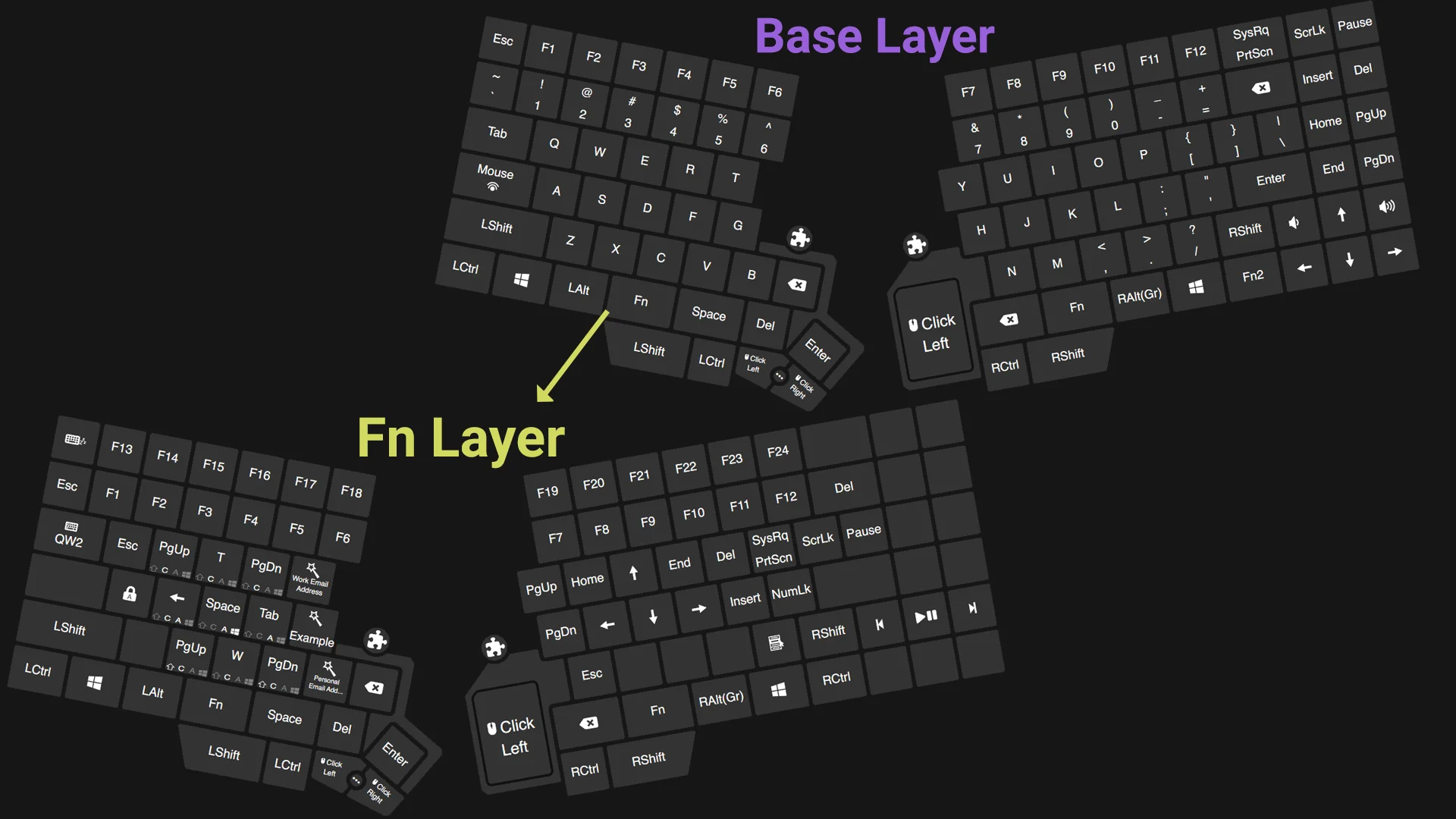
Forcing my thumbs to do Shift and Ctrl
On the 60 my goal was to use my right pinky less, so I put backspace on my right thumb and enter on my left. That stuck completely - it’s second nature now!
This time I wanted to go even further with the pinky alleviation: using either of my thumbs for Shift and Ctrl. To stop myself from cheating I disabled the left Ctrl and Shift keys outright, which is a trick I’d recommend generally for forcing yourself to retrain your muscle memory. When what you’re used to is still a readily available option, why go through the extra effort of choosing the unfamiliar option?
It was genuinely hard. It was so slow at first that I caught myself avoiding using capital letters. I also barely touched the right side and leaned almost entirely on the left. Baby steps…
After a week, it clicked. Not completely, since I now alternate between pinky and thumb, but that’s decent progress as far as I’m concerned.
Interestingly, I noticed that I still default to old UHK 60 habits based on constraints that no longer exist. Most of the time I’d rather hold a modifier and use the home row arrows than reach for the dedicated arrow keys that are now sitting right there. Months of muscle memory has “trained” me to prefer what I got used to before I had dedicated arrow keys.
Should you upgrade from a UHK 60?
For context on my answer: I was running a Riser 60 with the rubber palm rests, and I used the key cluster module and trackball module.
Here’s why I’m happy with the upgrade:
The built in wrist rests, for the reason I mentioned earlier. The extra keys are great, too, since the dedicated F row and arrow keys are what I missed most. And the additional thumb cluster keys, which are the main reason. Those two keys below Spacebar, Mod, and Fn are probably what I’d have the hardest time giving up now.
If you’re happy on your 60 and you don’t need wireless connectivity, a bigger screen, or those extra keys, you can comfortably skip it. The 60, especially the v2, is still a great keyboard and I’d still recommend it to people today.
The UHK I actually want
If I could order my ideal version, it’d be something like a UHK 75. Give me the thumb cluster upgrades, the F row, the arrow keys, and maybe print key or a couple of media keys, and I’d be set.
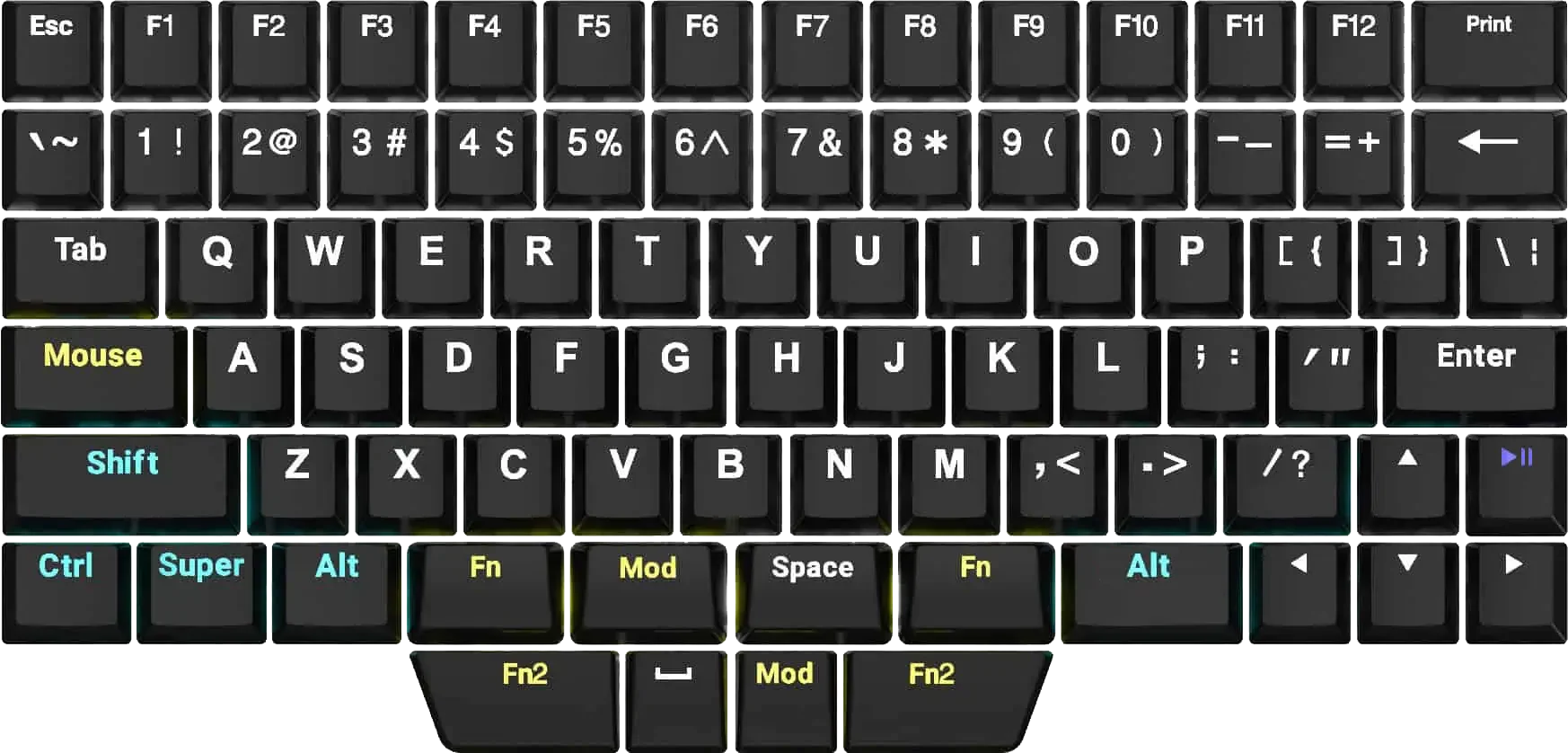
(This doesn’t actually exist, but it would be neat if it did.)
I’m not convinced I need dedicated scroll lock, insert, pause, delete, home, end, page up, or page down keys when configurable layers already put all of them within reach. A 70% probably wouldn’t do it either, since that drops the F row, which comes in handy, especially across different PC operating systems.
Who should skip it
If you genuinely can’t use a split keyboard, or you need something lower profile, or you need it in one piece, this device isn’t for you.
Everyone else: this rewards power users specifically. You’ll enjoy this if you like tinkering with your setup until it’s exactly right, and if you’re willing to embrace layers and thumb keys. There is real relearning involved, but even if you don’t want to change your typing behavior or habits much, just the form factor alone is magical to use.
Bottom line
After a few weeks, I’m a fan. It’s everything I liked about the 60 with enough quality of life improvements and new features that make me happy.
The advice from my original post hasn’t changed: change one thing at a time, disable the old key to force the new habit, and don’t try to optimize everything on day one.
If you’re curious, you can see the rest of my setup on the uses page.