Windows Phone 8 Hack: Make your own Metro tiles
One frustration I have with some applications is their live tile doesn’t match my Windows Phone’s accent color. Only some developers give their tile such properties.
There’s a way to make your own tiles with your own icons. This method works for People tiles and Wallet tiles, so it isn’t particularly useful necessarily (unless you want to pin your credit cards to start), but it looks cool.
Photoshop
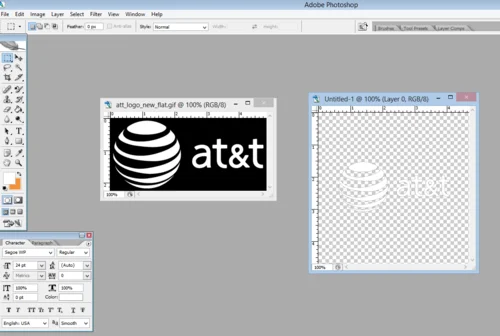
Use Photoshop (you can download CS2 for free from Adobe’s website here) to edit an image of the card you want to use. Make the background transparent, and use the paint bucket to make the shapes white. Save it as a PNG format. Also make sure to save the image with square dimensions for best results.
In the example below, I’m using AT&T logo for the “AT&T Account” Payment method that comes default in Windows Phone 8 wallet for AT&T phones. The image on the left is the stock image, and the image on the right is the transparent logo.
Email It
Then locate the saved file on your computer and email it to yourself. Open the email on your Windows Phone, open it, and save it to your phone.
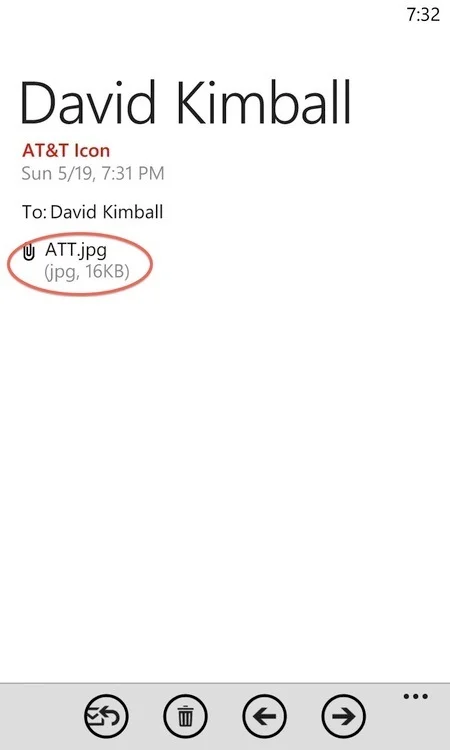
It should look white with a fully-black background like in this image.

Open Wallet App
Once the image is on your phone, open Wallet, and open an existing credit card (or make a new one).
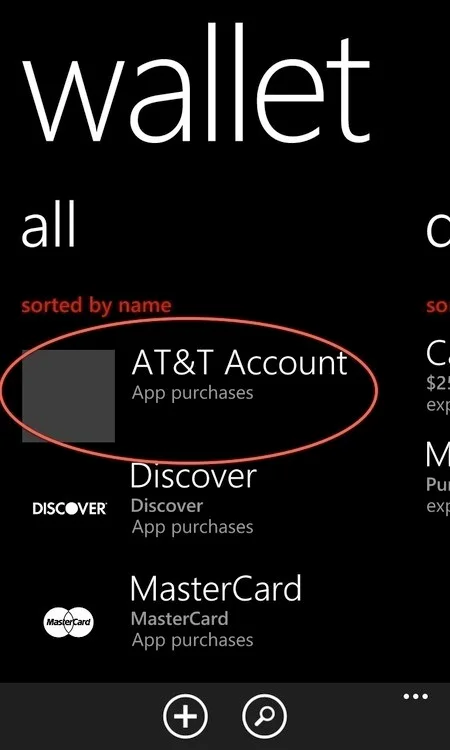
Tap the pencil charm to edit and then change the photo to your recently downloaded icon (see screenshot). Here we’re changing the existing non-metro friendly image and replacing it with the logo we made earlier.
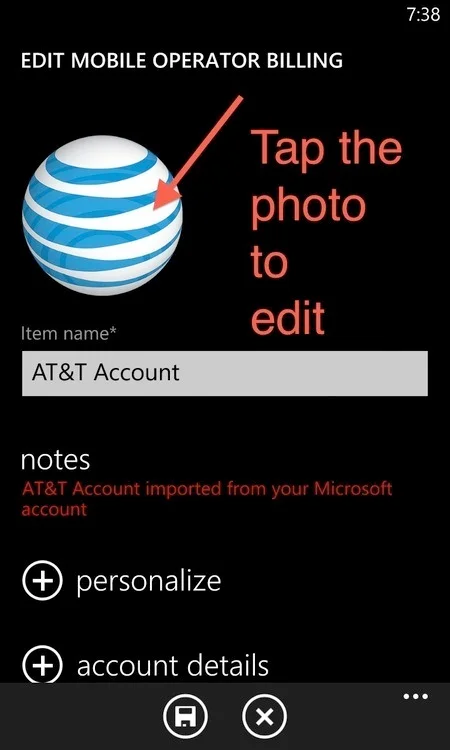
You should see your new icon with a black background. Tap the save charm at the bottom.
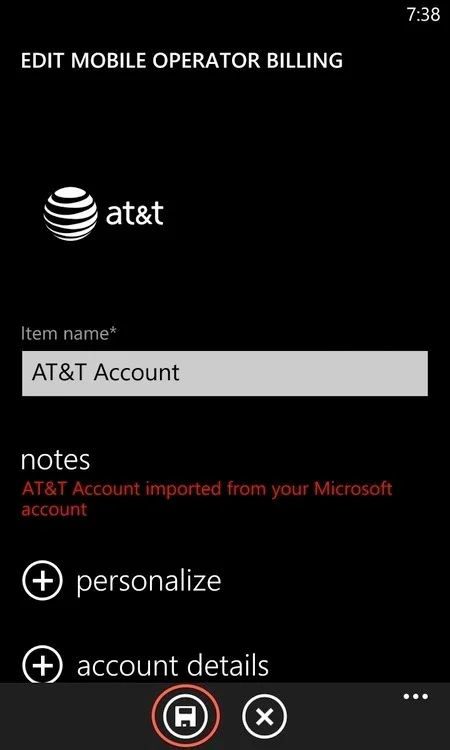
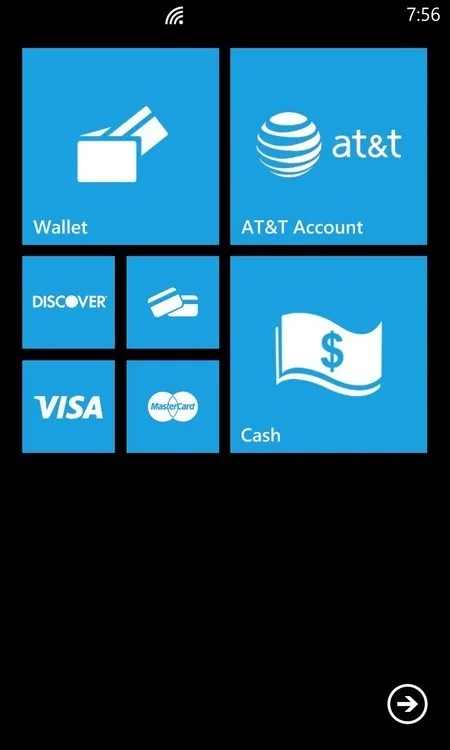
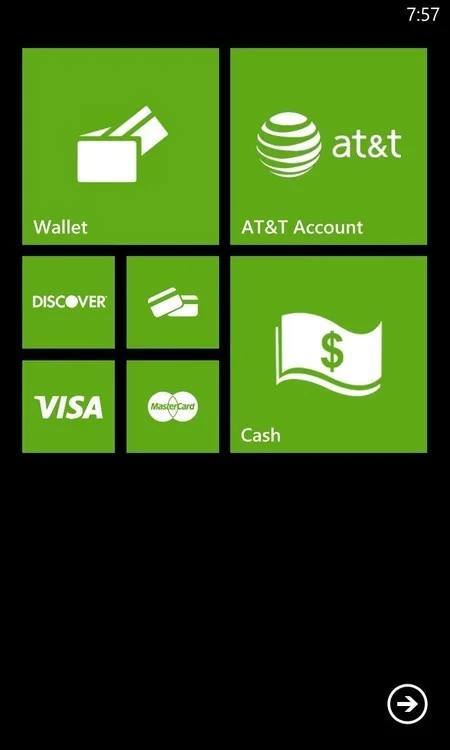
Pin your card to start, and it should look something like this:

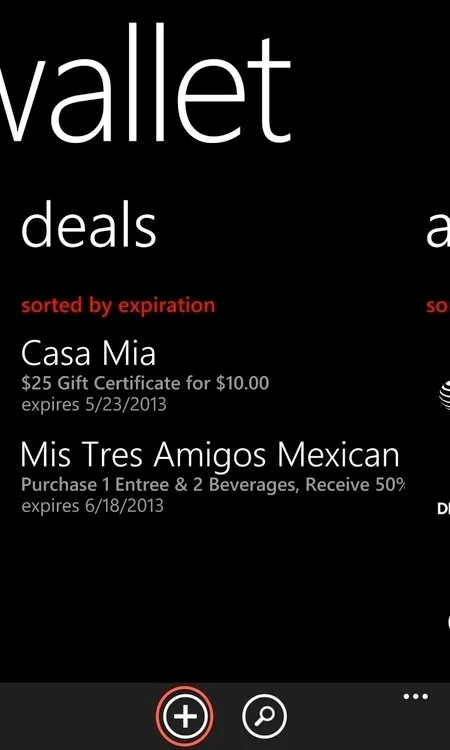
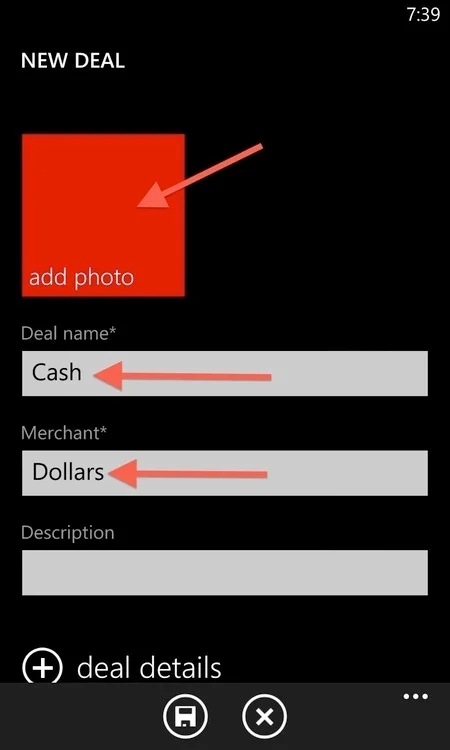
You can also make more tiles by going to the “deals” area of wallet and adding new items.
A title will appear on your tile from the “Deal name” field, so if you want a title displayed, name it there.
You can add as many as you want:
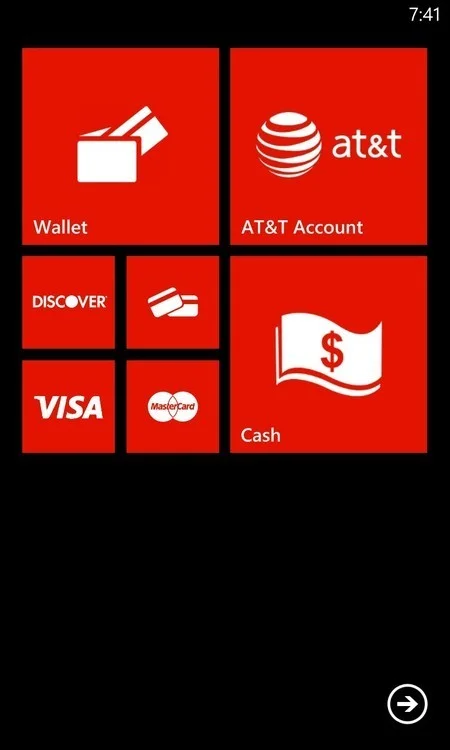
It works in any accent color you choose, and changes instantly.
Have any questions about this process? Tweet me at @davidvkimball and I’ll lend you a hand.